

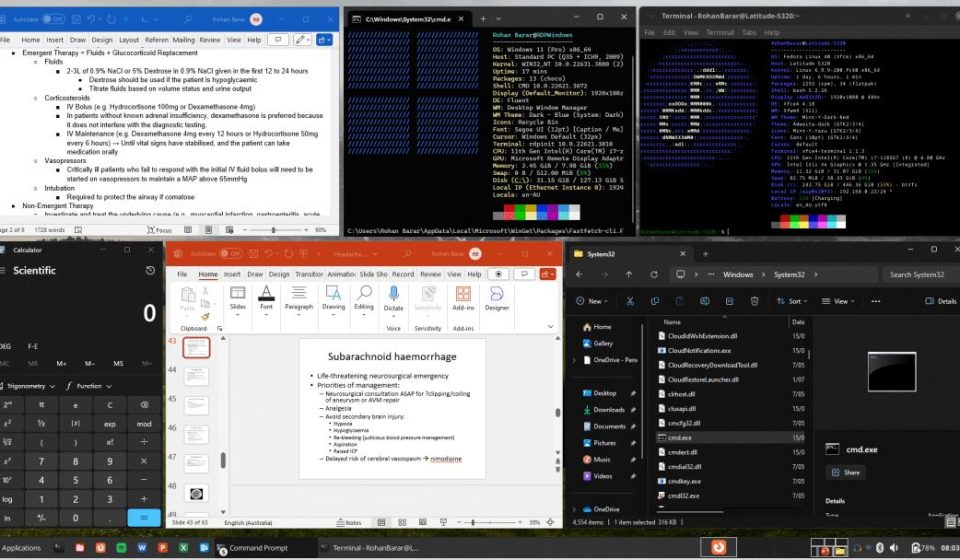
Running Office on Linux: They’ve Done It Better
This is a project Linux users have been waiting for. It has already accumulated over 15,000 stars on GitHub. Many people use Linux as their primary OS—not because they can’t use Windows, but because they simply don’t want to switch back. Yet, certain software remains unavoidable: Office, Adobe Creative Suite, and various professional tools exclusive to Windows. This creates a dilemma. To use them, you either maintain a dual-boot system or keep a virtual machine running.
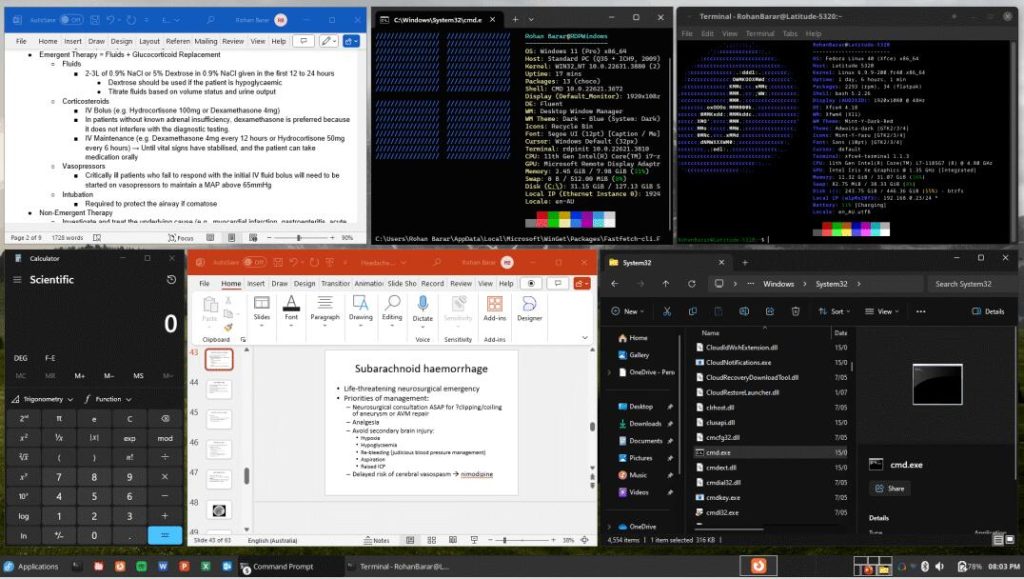
After years of this hassle, WinApps emerged with a more elegant solution. Instead of using Wine to emulateWindows programs, it runs a realWindows environment and seamlessly integrates the application windows into your Linux desktop. It looks and feels as if these apps are native to Linux. Because it runs a genuine Windows instance, compatibility is far more reliable than Wine. In theory, any Windows application should work. The community has tested 30 mainstream apps with minimal issues.
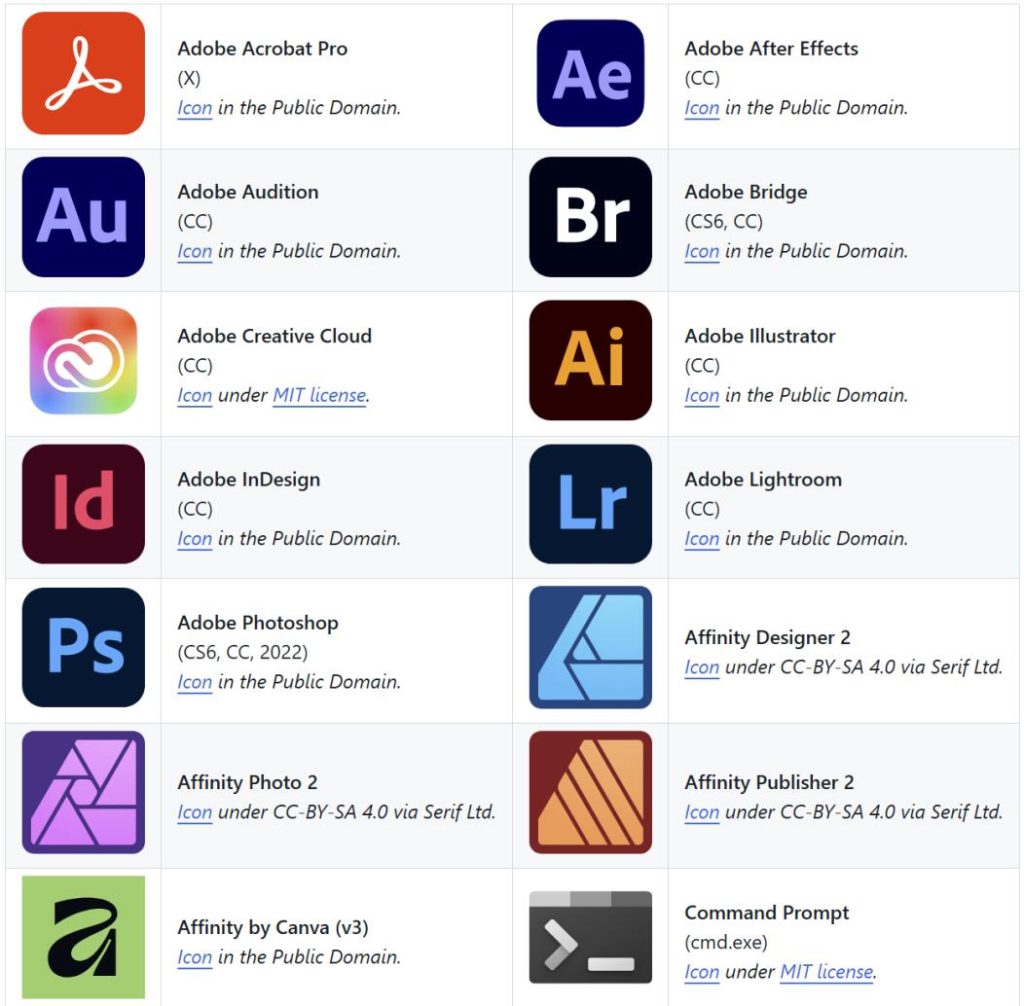
But mere compatibility is table stakes; the real magic is in the details:
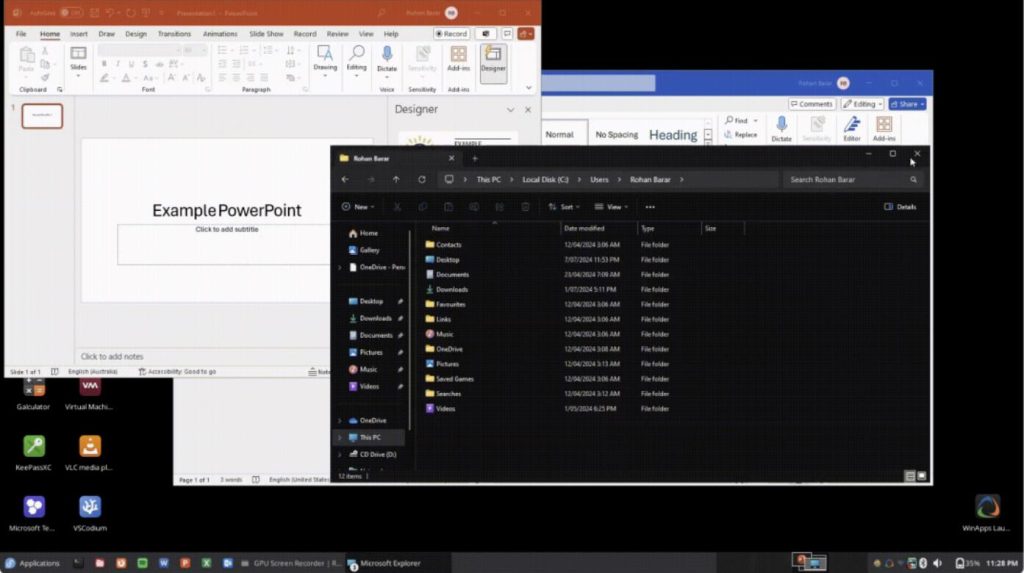
- Automatic App Discovery & Integration: WinApps scans your Windows environment, detects installed applications, and injects their icons directly into your Linux application menu. It can also configure MIME type associations, allowing your file manager to recognize which files should open with Windows apps. For example, right-click a
.docxfile in Nautilus, and it opens directly in Microsoft Word. - Bidirectional File System Access: From Windows, you can access your Linux
/homedirectory via the path\tsclient\home. Dragging files between systems and sharing a clipboard works flawlessly, and printers are shared between the two environments. - WinApps Launcher & System Tray: A tray icon provides a menu to launch apps, manage the Windows VM/container, and check status—no need to open a terminal for routine tasks.
- AUTOPAUSE: When the Windows environment is idle, WinApps automatically pauses it, saving system resources so you don’t have to worry about a VM silently eating your RAM.
- Multi-Monitor & HiDPI Support: It works correctly across multiple monitors and supports HiDPI scaling factors like 100%, 140%, and 180%.
How to Get Started
Regardless of the method you choose, the first steps are the same.
1. Install Dependencies
You need FreeRDP (for remote connection), plus curl, dialog, and git.
- Ubuntu/Debian:
sudo apt install freerdp2-x11 curl dialog git - Fedora/CentOS: Replace
aptwithdnf; package names are similar.
2. Clone the Project
bashbashgit clone https://github.com/winapps-org/winapps.git
cd winapps
Choose Your Path
WinApps supports three methods for running Windows. Pick the one that fits your needs.
Route 1: Docker Container (Easiest, Recommended for Beginners)
This is the most hands-off option. The script automates everything.
Run the installer:
bashbash./setup.sh
It will ask a series of questions: select Docker as the backend, choose where to store the Windows image, and enter your username/password. Then wait. The script automatically pulls the Windows image, configures networking, and installs VirtIO drivers. You never have to touch the Windows installation UI. Ideal for users who want zero fuss. (Prerequisite: Have Docker installed via sudo apt install docker.io).
Route 2: Podman Container (Similar to Docker, but More Secure)
The process is nearly identical to Docker. Run ./setup.shand select Podman. The key difference: Podman has no background daemon, and containers run under your user permissions, making it more suitable for security-conscious environments. It’s also fully automated.
Route 3: Libvirt/KVM Virtualization (Complex, but Best Performance)
Recommended for users who need 3D acceleration or high performance (e.g., for graphics-intensive apps). KVM uses hardware virtualization, offering much smoother performance than containers, especially for GPU workloads. However, it requires manual work: you must create the Windows VM yourself, install the OS, and configure VirtIO drivers. Refer to the libvirtdocumentation in the WinApps repo for detailed steps. This route is best for experienced Linux users.
Important Caveats
- X11 Only: Currently, only X11 is supported. Wayland’s single-app mode isn’t working yet. If you use Wayland, you’ll need to switch to an X11 session or wait for future updates.
- No GPU Passthrough = Poor 3D: Without configuring GPU passthrough, 3D applications and games will struggle. Windows will fall back to software rendering, resulting in low frame rates.
Final Thoughts
Ultimately, WinApps solves a very specific problem. It’s not for everyone. If you’re primarily a Windows user, this is irrelevant. If you’re a pure Linux user whose needs are met by open-source software, you won’t need it either.
Its value is for that specific group of people deeply embedded in the Linux ecosystem: their servers run Linux, their dev tools are Linux-native, and their workflow is Linux-centric. But reality intervenes—sometimes you mustopen a .docx, use an internal tool that only exists on Windows, or edit a Visio diagram for a client.
That group is small, but they exist. What do you think?
The project is fully open-source. Check out the source code and docs on GitHub.
Open Source Address: https://github.com/winapps-org/winapps