

The Non-Mouse-Stealing Digital Employee is Finally Here
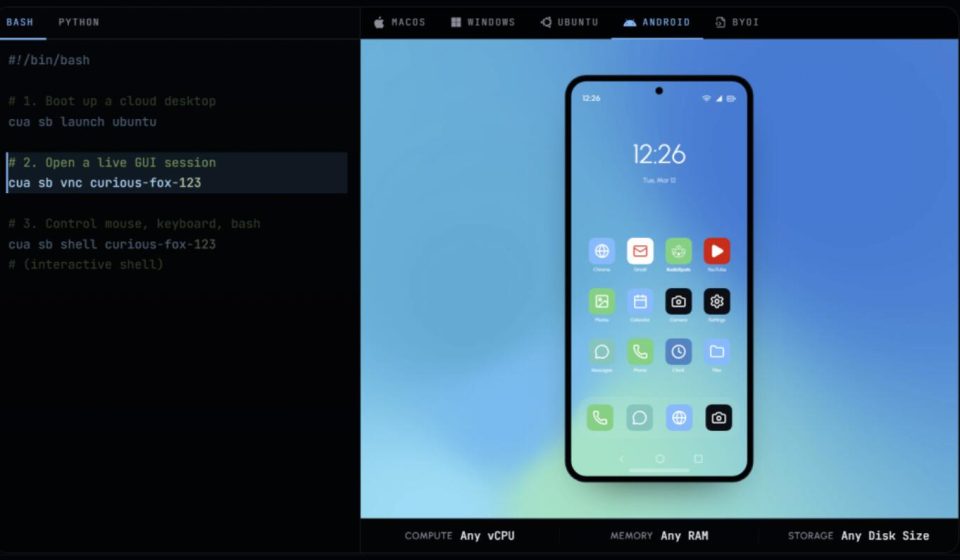
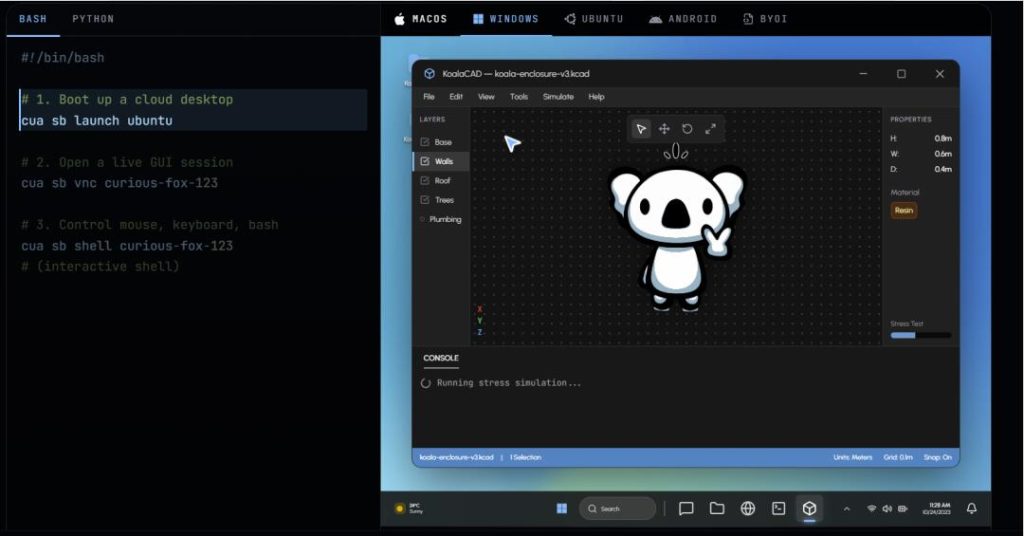
In just a few months, a project on GitHub has garnered over 17,000 stars. Its creator isn’t from a Silicon Valley giant, but a developer who previously worked at Xbox and Microsoft AI before starting a YC-backed venture. The project, named Cua, has generated significant buzz in the developer community. In a nutshell, it allows AI agents to securely control an entire desktop system, as if operating a virtual computer—taking screenshots, clicking, typing, and running commands. This virtual computer is completely isolated, meaning whatever the AI does won’t affect your real machine.
Making AI Truly Use a Computer
The simplest way to get started is by using Cuabot:
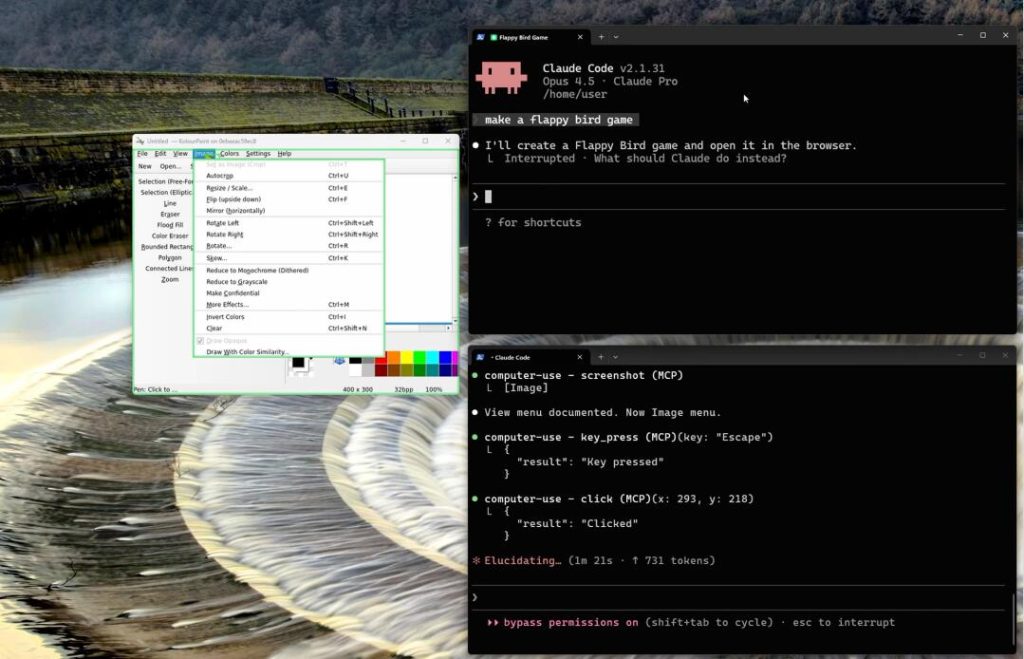
npx cuabotIt launches a visual window, letting you witness firsthand how the agent operates the desktop within a sandbox. You can observe:
- The AI manipulating a virtual desktop in a separate window
- Taking screenshots, clicking, and typing text
- Executing command-line operations
- Sharing the clipboard with the host machine
The entire process feels like watching a digital employee at work. Crucially, while it’s busy in the background, your computer remains unaffected. You can continue coding, watching videos, or replying to messages—all without interference.
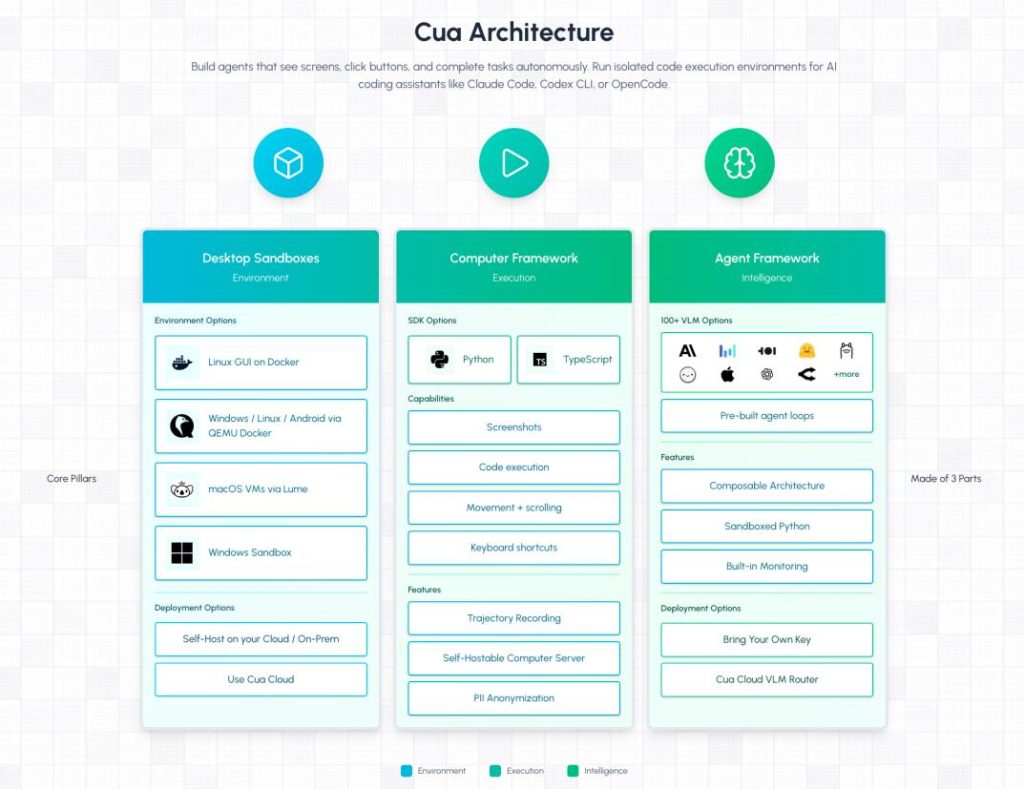
Cua’s core functionality is enabling AI to perform desktop operations safely within an isolated environment, without impacting your actual machine. The main concept is a three-layer architecture: the AI Agent sits on top, a unified Computer SDK is in the middle, and the Sandbox layer is at the bottom. Regardless of the underlying virtualization technology, the interface presented to the AI remains the same. Write code once, and it runs across different systems. The advantages of this design are:
- Unified Interface: No need to worry about the underlying OS (macOS, Windows, Linux, or Android).
- Secure Isolation: All AI operations are confined to the sandbox, protecting the host.
- Flexible Deployment: Can use cloud sandboxes or local virtualization.
It’s worth noting that Cua supports not only desktop systems but also mobile. Android can run via cloud sandboxes or local virtualization, and iOS is supported via an agent-device integration. This means an AI Agent can operate a phone just like a computer, performing gestures, taps, and swipes.
Let’s delve into Cua’s four core capabilities:
1. Cua Driver: Background Control Without Hijacking Your Cursor
This is a background desktop control program. It can control native desktop applications from the background without seizing your cursor or focus. You can continue using your computer for other tasks while the AI works. It works on macOS and Windows, with Linux support currently in a pre-release state.
2. Cua Sandbox: Isolated Sandbox, Hot-Starts in Under 1 Second
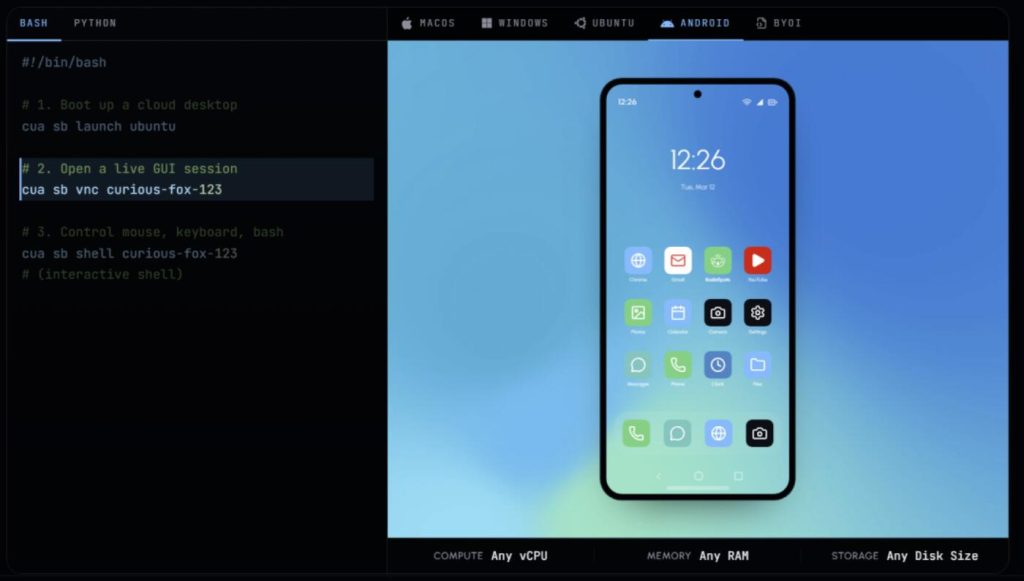
The sandbox environment can be cloud-based or locally virtualized. On macOS, a component called Lume, developed using Apple’s Virtualization.Framework, achieves near-native CPU performance (~97%). This is great news for Apple Silicon users. It supports snapshots and forking—maintaining a clean base state and cloning multiple parallel instances from a snapshot, allowing hundreds of agents to run different tasks simultaneously.
3. Cuabot: Seamless Sandbox for Coding Agents (Multi-Agent Collaboration Tool)
You can use Claude Code, OpenClaw, or other graphical workflows. It creates a separate window to natively display the sandboxed desktop, uses H.265 encoding, and supports clipboard sharing with the host and audio.
4. Cua-Bench: Benchmarking Agents with OSWorld
This is the evaluation module. It supports mainstream benchmarks like OSWorld, ScreenSpot, and WindowsArena, and can export agent execution traces for training. For large-scale testing, you can use the CLI tool to launch hundreds of agents in parallel and feed the data to reinforcement learning models.
After reading about these features, many of you are probably eager to try it out. For macOS or Linux, install CuaDriver with a single command:
bashbash/bin/bash -c "$(curl -fsSL https://raw.githubusercontent.com/trycua/cua/main/libs/cua-driver/scripts/install.sh)"
For Windows, use PowerShell:
powershellpowershellirm https://raw.githubusercontent.com/trycua/cua/main/libs/cua-driver/scripts/install.ps1 | iex
Install the Python SDK via pip:
bashbashpip install cua
For a quick Cuabot experience:
bashbashnpx cuabot
This opens a visual window to see how the agent operates in the sandbox.
Cua Computer SDK: Provides unified interfaces for screenshot capture, clicking, keyboard input, and shell commands.
However, some current limitations should be mentioned:
- Linux support is currently in a pre-release state.
- The Rust and Swift versions on macOS are not yet fully aligned; the Swift version is recommended for production.
- Using the MCP Server requires a valid model API key.
If you primarily use Mac or Windows, want an AI Agent to handle GUI tasks for you, and prefer not to expose your host machine directly, then Cua can be a great solution.
Final Thoughts
We used to think AI could write code, draw pictures, and chat, but one piece was missing: can AI usea computer? Not by calling APIs or running scripts, but by seeing the screen, moving the mouse, clicking buttons, and typing text—just like a human. Cua provides a lightweight, open-source solution. It offers a safe operating environment for AI Agents, allowing them to genuinely “use” a computer as a digital employee, rather than merely “accessing” it. And it all happens within a sandbox, leaving your actual computer untouched.
Feel free to share your thoughts in the comments. The project is licensed under the MIT License. Those interested can check out the source code and documentation on GitHub.
Open Source Address: https://github.com/trycua/cua