
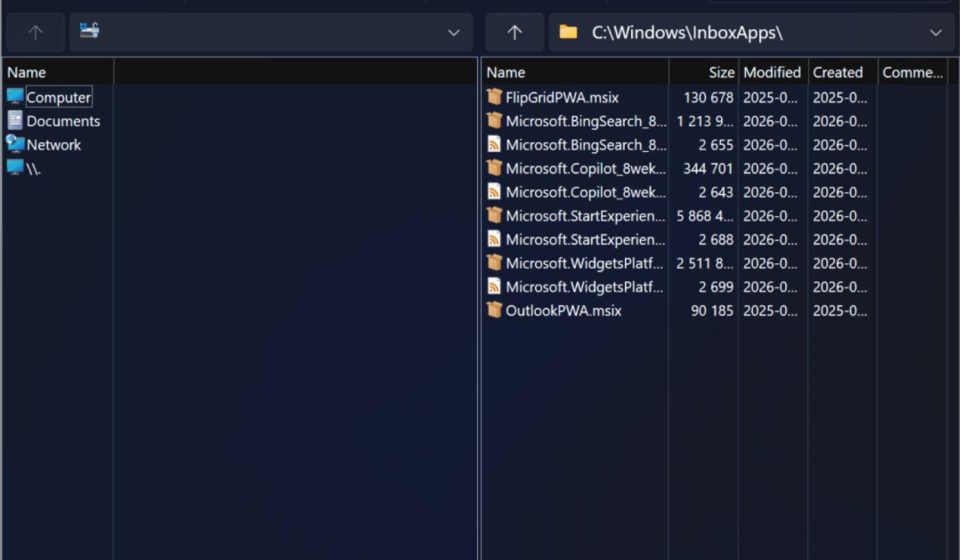
Can’t Stand Windows Archiving Tools? Try This 14K Star Open-Source Gem, Free & Ad-Free, Even Optimizes Win11’s Right-Click Menu.
Can’t Stand Windows Archiving Tools? Try This 14K Star Open-Source Gem, Free & Ad-Free, Even Optimizes Win11’s Right-Click Menu.
Are you tired of Windows’ built-in tool either failing to open formats or being painfully slow every time you need to extract a file?
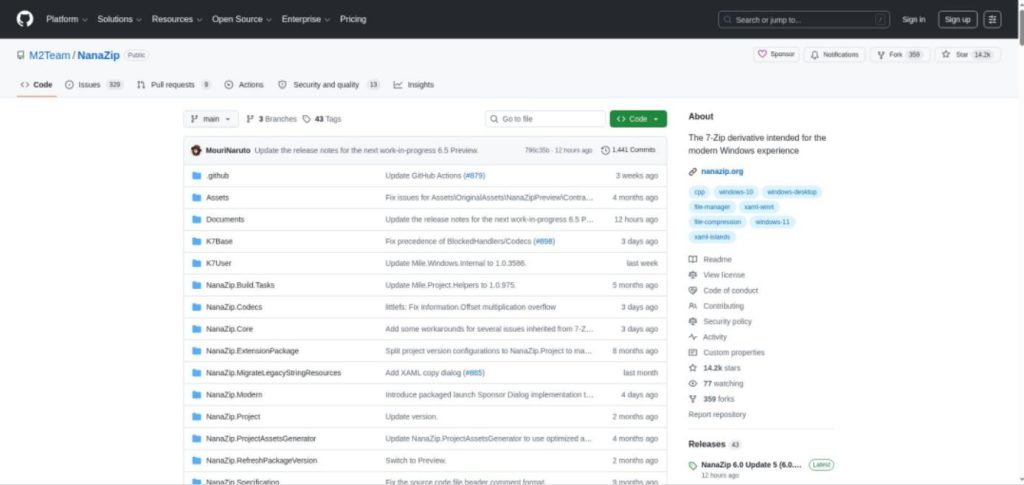
Looking for a good archiving app but scared of pop-ups, ads, bundled junk, and constant payment reminders?
NanaZip is the one that can directly replace all those messy archivers on your computer.
It’s open-source, free, ad-free, has over 14,000 stars on GitHub, and is specifically adapted for Windows 11.
Why do I suggest Windows users switch to it?
The most comfortable thing about NanaZip isn’t that it has tons of features, but that it solves exactly the most annoying problems for average users.
- Completely free and open-source, no feature limits for daily use.
- No ads, no bundling, no pop-ups, won’t secretly install a bunch of junk software.
- Supports common formats like 7Z, ZIP, RAR, ISO; it can open most archives you receive.
- Adapted for Windows 11; the interface doesn’t look like software from a decade ago.
- Right-click menu works immediately; extract/compress without opening the app repeatedly.
- Installable from the Microsoft Store; clear source, cleaner uninstallation.
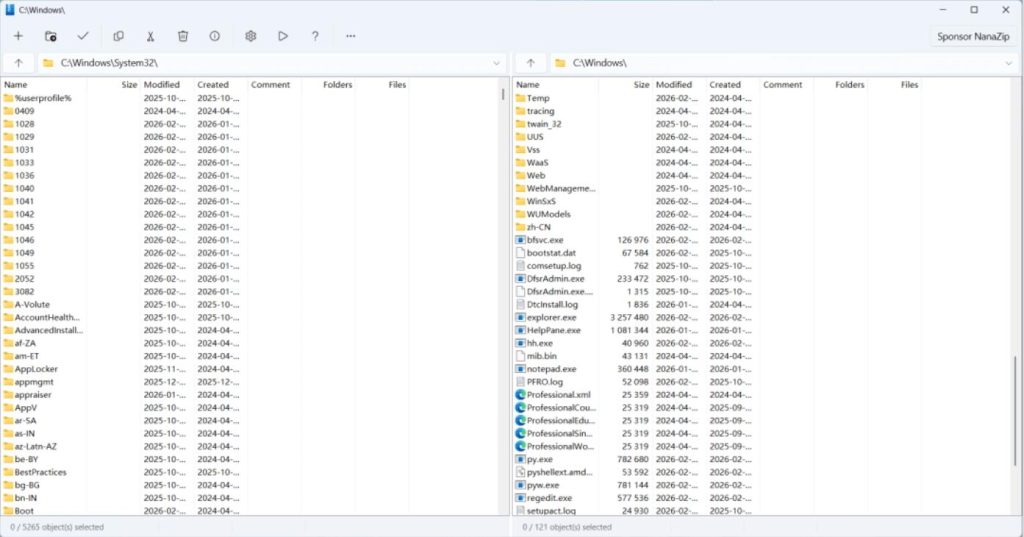
In short, it takes 7-Zip’s powerful compression engine and repackages it into a form better suited for Windows 11.
1. Install in 30 seconds, easy for anyone.
You don’t need to find installers on sketchy download sites to install NanaZip.
Just open the Microsoft Store, search for “NanaZip”, and click install.
Three steps:
- Open Microsoft Store, search for NanaZip.
- Click Install.
- After installation, right-click on any archive to use it.
No registry edits, no environment configuration, no worries about extra software hidden in the installer. This is important for average users. Many archivers themselves are fine; the problem is the messy download sources. A quick search leads to download sites, software hubs, or “accelerated installers” that might install unwanted stuff. NanaZip via the Microsoft Store is much more worry-free.
2. Daily Extraction, Done in One Right-Click.
Once installed, you don’t need to open the app for daily extraction. Right-click on an archive file, and you’ll see NanaZip’s options.
Common operations are basically these:
- Extract Here
- Extract to “[Folder Name]”
- Open Archive to view contents
- Compress to ZIP or 7Z quickly
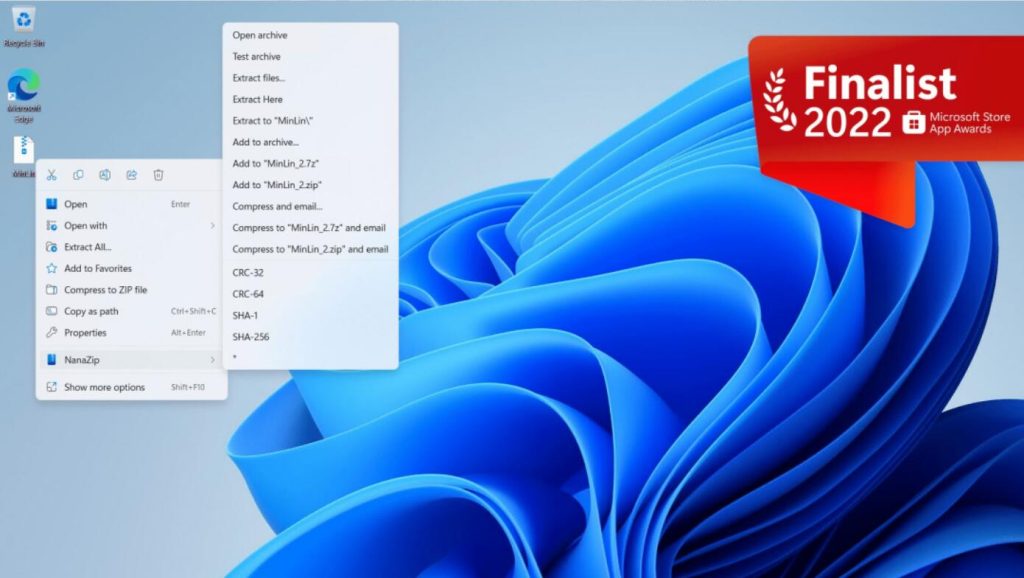
Thisis the experience a Windows archiver should provide. You didn’t install it to study the software; you just want to right-click and extract immediately after receiving a file. NanaZip makes this process smooth. Especially for Windows 11 users, the difference is noticeable. Many old tools work, but their right-click menus, interface style, and pop-ups feel like relics. NanaZip looks and feels more like a modern Windows app.
3. Compression, Encryption, Splitting – Common Office Features Included.
Besides daily extraction, NanaZip handles common compression needs in office scenarios. For example, to pack multiple files to send to someone, just select the files and right-click to compress.
Common features include:
- Pack multiple files into a ZIP or 7Z with one click.
- Set a password to protect important files.
- Create split/spanned archives for large files.
These features are sufficient for average users. Company documents, project files, image assets, installer collections can all be packed directly. For more private content, you can add a password. Without the password, others can’t open the archive.
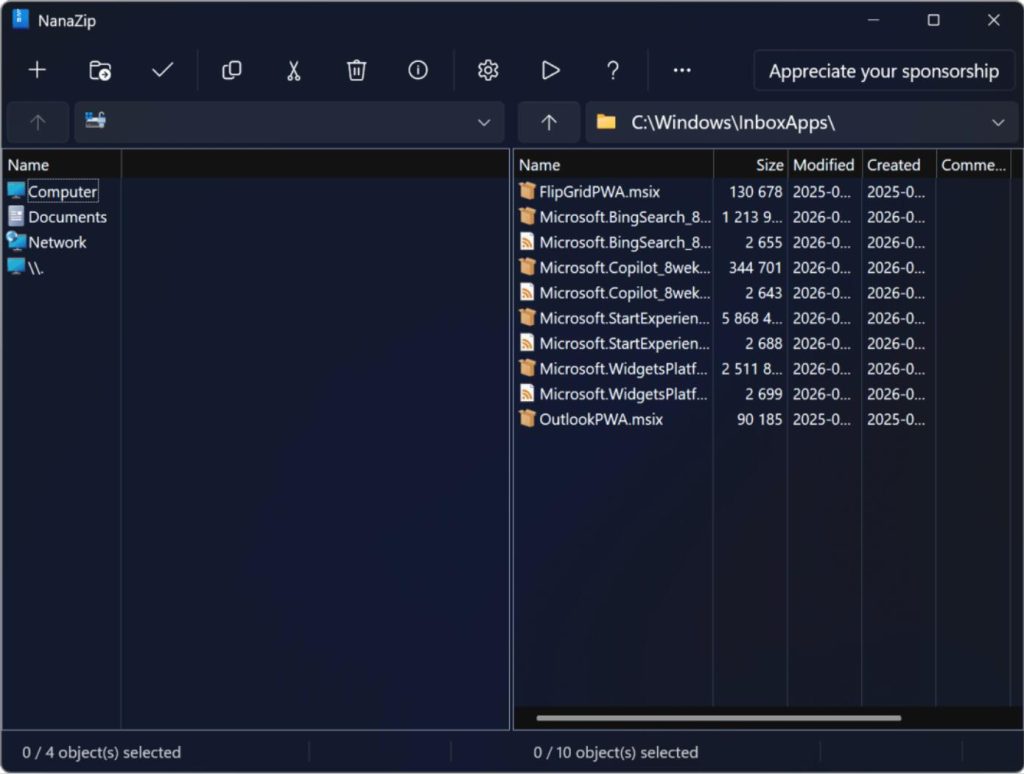
4. Why Not Stick with WinRAR or 7-Zip?
If you’re using WinRAR, the most annoying thing is probably that classic nag/payment reminder window. The software works, but that pop-up is indeed irritating. If you’re using 7-Zip, the functionality is fine, even excellent. But its interface, right-click menu experience, and overall look do feel a bit dated in today’s Windows 11.
NanaZip’s positioning is clear: keep 7-Zip’s core engine, but redo the interface, installation method, right-click menu, and Windows 11 adaptation. So it’s not just a “skin” or a “re-skin.” It solves a very practical problem: old tools are powerful but look dated and feel clunky; new tools look good but often have ads, fees, or bundling. NanaZip sits right in the middle, improving both capability and experience.
5. A Few Details to Note.
- NanaZip is better suited for Windows 10 version 2004 and above, with a more complete experience on Windows 11. If your system is too old, the latest version might not be suitable.
- The official also provides a portable version, but it’s not recommended for average users as the first choice. Portable versions typically lack full right-click menu integration and file association.
- For a worry-free experience, use the Microsoft Store version.
- Also, NanaZip’s licensing isn’t a simple “single LGPL.” The project itself and the components it inherits/uses have different licenses. Average users don’t need to worry, but if your company has strict compliance requirements, check the official License page.
Summary
If you’re still tolerating Windows’ built-in extraction, WinRAR’s nag screens, or 7-Zip’s dated interface, NanaZip is a great replacement. Its core advantages are clear: free & open-source, ad-free, no bundling, supports common formats, adapted for Win11, and has a usable right-click menu. For the average Windows user, this is a basic tool worth keeping on the PC long-term.
Project Info:
- Name: NanaZip
- OS Support: Windows 10 version 2004+ / Windows 11
- Install: Microsoft Store / GitHub Release
- Price: Free & Open-Source
- GitHub: https://www.github.com/M2Team/NanaZip
- Website: https://www.nanazip.org