
Recreating the Classic Winamp Experience, with 30,000+ Radio Stations Making It Even Better
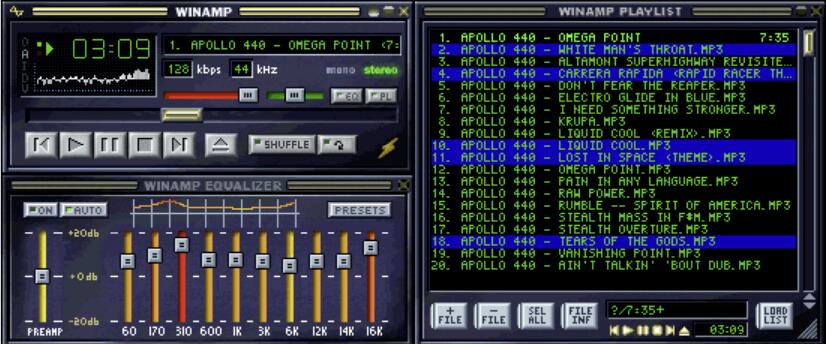
If you were born in the 1990s, chances are you’ve used or at least seen Winamp. That music player that could play music on your desktop, display spectrum visualizations, and even change skins was a nostalgic memory for many. Recently, I discovered someone has recreated that experience in the terminal.
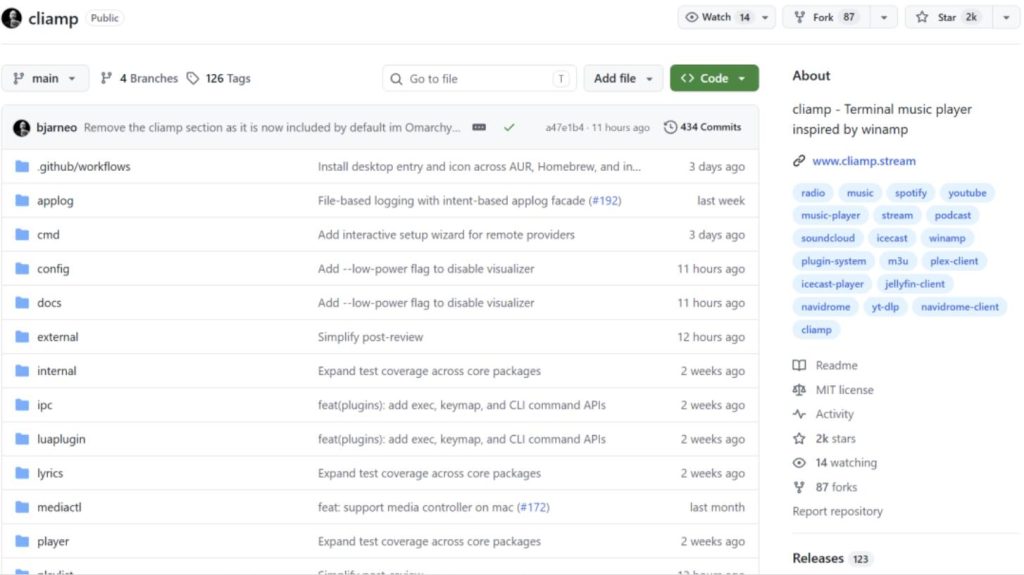
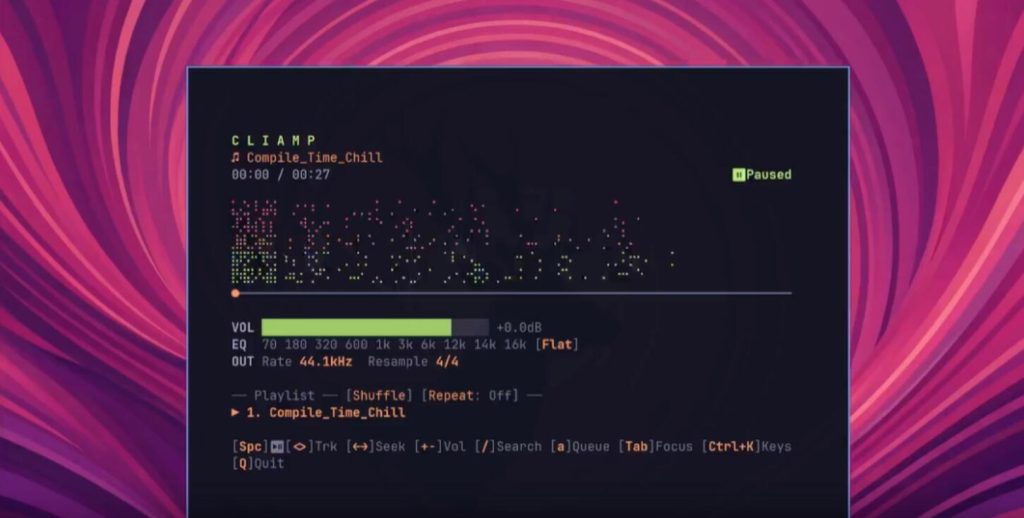
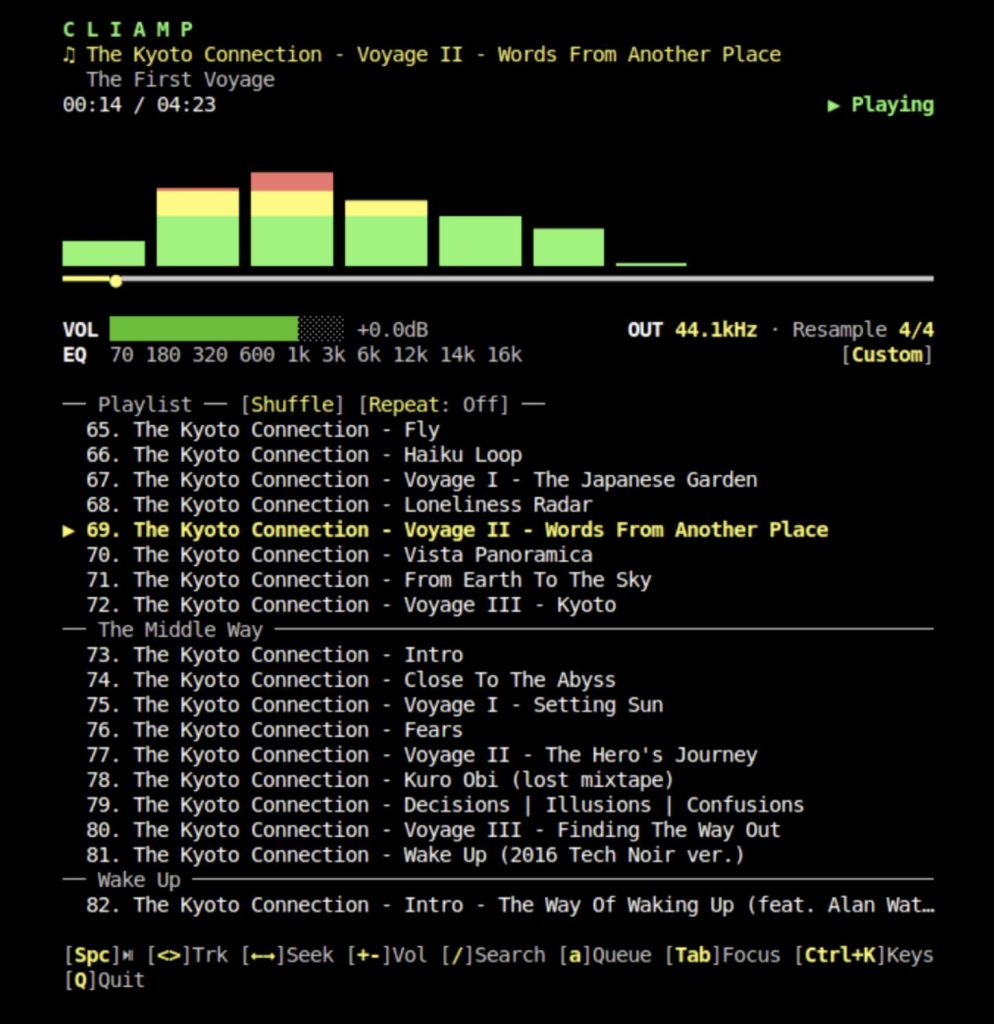
cliamp is a terminal music player written in Go, currently with 2,021 stars on GitHub. Its standout feature is unifying over 10 audio sources—local files, streaming media, podcasts, YouTube, Spotify, and Xiaoyuzhou (a Chinese podcast app)—into a single terminal interface, while offering a 10‑band parametric equalizer and real‑time spectrum visualization.
When I first saw this project, I thought it was just another ordinary terminal player. But after trying it, I realized it’s much more than that.
It Integrates Music from Multiple Platforms into One Place
What annoyed me most about listening to music and podcasts was how scattered the sources were—everything was all over the place, making it hard to find what I wanted. Local files required cmus or mpd, but to listen to Spotify, I had to open the official client. What started as an attempt to stay focused in the terminal ended up with me constantly switching windows, which was frustrating.
cliamp’s solution? Pull all these audio sources into one interface.
It supports:
- Local files (MP3, FLAC, OGG, AAC, etc.)
- HTTP streaming media
- Podcast RSS subscriptions
- YouTube, YouTube Music, SoundCloud, and Bilibili via yt‑dlp integration
- Spotify via go‑librespot
- Self‑hosted music servers like Navidrome, Plex, and Jellyfin
So whether you want to listen to local collections, online radio, podcast episodes, or streaming platforms, you can do it all in the same terminal window—no more window‑switching.
10‑Band Equalizer & Real‑time Spectrum Visualizer
I’ve also used other terminal players like cmus, mpd, and mpv. Many of them are too basic—they lack even an equalizer, let alone sound‑quality adjustments. cliamp does this well. It comes with a 10‑band parametric equalizer, with frequency ranges from 70 Hz to 16 kHz; each band can be adjusted between ‑12 dB and +12 dB.
Even better, it includes 10 presets: Flat, Rock, Pop, Jazz, Classical, Bass Boost, Treble Boost, Vocal, Electronic, and Acoustic.
There’s also a real‑time spectrum visualizer that shows the dynamic changes in audio frequency. It offers 8 visualization modes: Bars, Bricks, Columns, Wave, Scatter, Flame, Retro, and None.
My favorite is the Flame mode—it looks like dancing flames, perfect for rock music. The Wave mode is also nice, more elegant and suitable for classical music. If you care about sound quality or want to adjust for different headphones or speakers, this is incredibly useful.
30,000+ Online Radio Stations at Your Fingertips
Another pleasant surprise: it has over 30,000 online radio stations built‑in, integrated via the Radio Browser directory. Press Rto browse and search—just select the station you want to listen to.
Installation
cliamp offers a variety of installation methods covering most mainstream platforms.
- macOS users can install via Homebrew: bashbash
brew install bjarneo/cliamp/cliamp - Arch Linux users can install via AUR: bashbash
yay -S cliamp - For other Linux distributions and Windows, download the pre‑compiled binaries.
After installation, the simplest usage is:
bashbashcliamp ~/Music # Play local music directory
or directly play a URL:
bashbashcliamp https://example.com/stream
To configure remote sources like Spotify or Navidrome, run:
bashbashcliamp setup
It will guide you through an interactive wizard, verify the connection, and automatically write the configuration file.
The configuration file is located at ~/.config/cliamp/config.tomland can be edited manually:
tomltoml# Default volume (range: -30 to 6)
volume = 0

# Repeat mode: "off", "all", or "one"
repeat = "off"

# Enable shuffle
shuffle = false

# Enable mono output
mono = false

# EQ preset
eq_preset = "Flat"

# 10‑band EQ gains (range: -12 to 12)
eq = [0, 0, 0, 0, 0, 0, 0, 0, 0, 0]

# Theme
theme = "catppuccin"
Themes & Customization
The theming is also well thought‑out. cliamp comes with 20 carefully designed built‑in themes:
- catppuccin: Popular Catppuccin color scheme, soft and comfortable
- dracula: Classic Dracula dark theme
- gruvbox: Retro‑style Gruvbox
- nord: Cool‑toned Nord theme
- tokyo‑night: Tokyo nightscape style, very cyberpunk‑esque
- vantablack: Ultimate black theme
I tried them all and liked catppuccin and tokyo‑night the most. Catppuccin is soft and easy on the eyes for long sessions, while tokyo‑night has a cyberpunk vibe that just looks cool.
Creating your own theme is simple: just create a .tomlfile in the ~/.config/cliamp/themes/directory:
bashbashmkdir -p ~/.config/cliamp/themes
Then create a theme file, e.g., mytheme.toml:
tomltomlaccent = "#268bd2"
bright_fg = "#eee8d5"
fg = "#839496"
green = "#859900"
yellow = "#b58900"
red = "#dc322f"
Press tto see your theme appear in the list, and press vto switch visualization modes.
Advanced Features
Beyond the basics, cliamp supports some advanced capabilities:
- Lua plugins: The community already has plugins for audio bubble visualizations and Last.fm scrobbling; if you know Lua, you can develop your own extensions.
- SSH streaming & IPC remote control: Run it in the background on a server, play via SSH locally, or let other software control it via IPC. Ordinary users may not need this, but it’s great for heavy terminal users and server deployment scenarios.
Shortcut Reference
cliamp’s shortcuts are well‑designed, mostly single‑key operations:
Space– Play/Pause→– Next track←– Previous track↑/↓– Volume up/downs– Toggle shuffler– Toggle repeat modee– Open equalizerR– Browse online radio stationst– Switch themesv– Switch visualization modesm– Toggle mono outputf– Toggle fullscreen visualizationq– QuitCtrl+K– Show all shortcuts
Overall, the shortcut design is intuitive and easy to remember after a few days of use.
Command‑line Arguments Quick Reference
cliamp also supports various command‑line arguments, which can be combined:
bashbashcliamp --shuffle --volume -5 --theme tokyo-night --visualizer Flame ~/Music
Final Thoughts
Overall, cliamp is quite good, but I have two minor complaints:
- Telemetry is enabled by default—while it can be turned off manually, privacy‑related features should be opt‑in; having data collection on by default leaves a poor impression.
- The compilation guide is too brief, making it easy for beginners to run into issues. Many people online have reported compilation failures, which isn’t very friendly to newcomers.
As a heavy terminal user, I really like this minimalist design—no need to switch windows, just listen to music directly in the command line. The experience is exceptionally comfortable. The flaws don’t overshadow the strengths, and I recommend terminal enthusiasts give it a try!
The project is open‑source under the MIT license. If you’re interested, check out the source code and documentation on GitHub.
GitHub Repository: