
Textream: The Open‑Source macOS Teleprompter
Only 1.5 MB in size. Launched less than three months ago, GitHub stars have surpassed 3,100. This open‑source macOS teleprompter called Textream is quietly spreading among video creators.
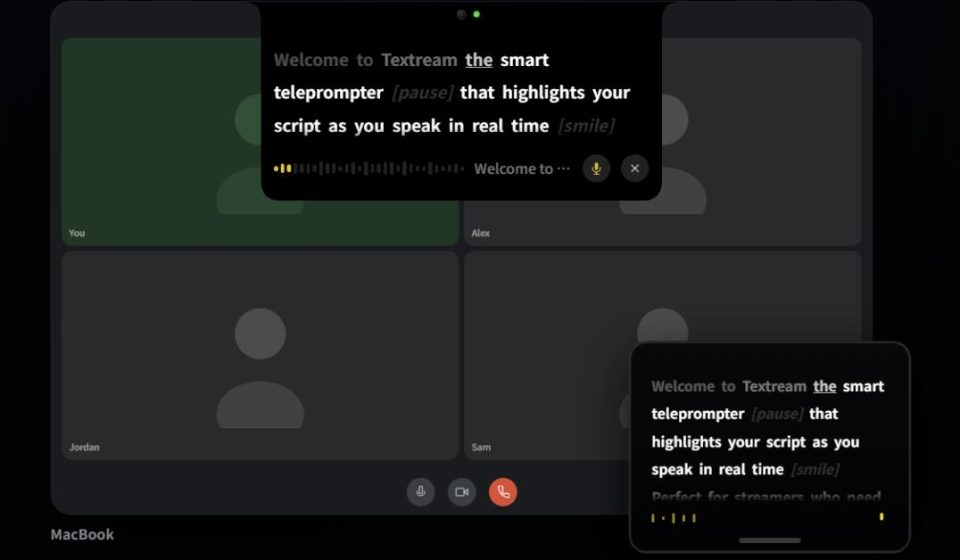
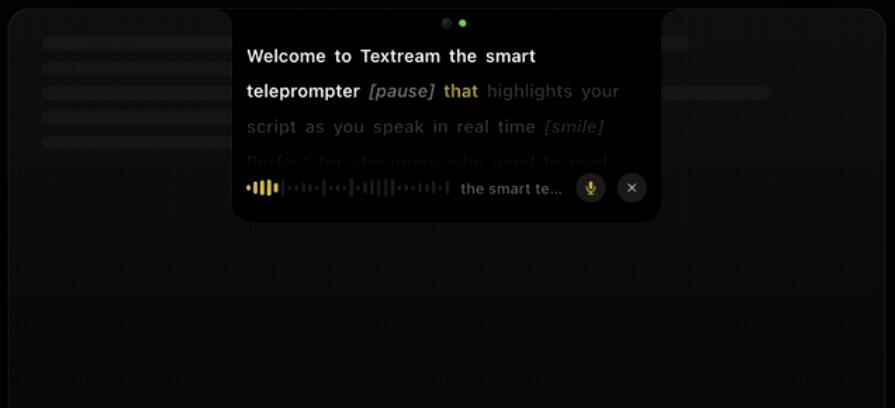
In a nutshell: It tracks your speech in real‑time, highlighting the script word by word. Wherever you speak, it lights up. It runs entirely locally—no internet required, no content uploaded to the cloud. All speech recognition happens on your Mac. For privacy‑conscious content creators, this is a definite plus.
I once needed a teleprompter for a tutorial and found that many traditional teleprompters can’t keep up with human speaking rhythm. Pause for a sip of water or add an interjection, and the script has already scrolled far away. Anyone who’s used one knows how frustrating that “chasing the machine” experience is.
Textream directly uses macOS’s native speech recognition to identify every word you say locally and in real‑time. Click any word to jump directly to it.
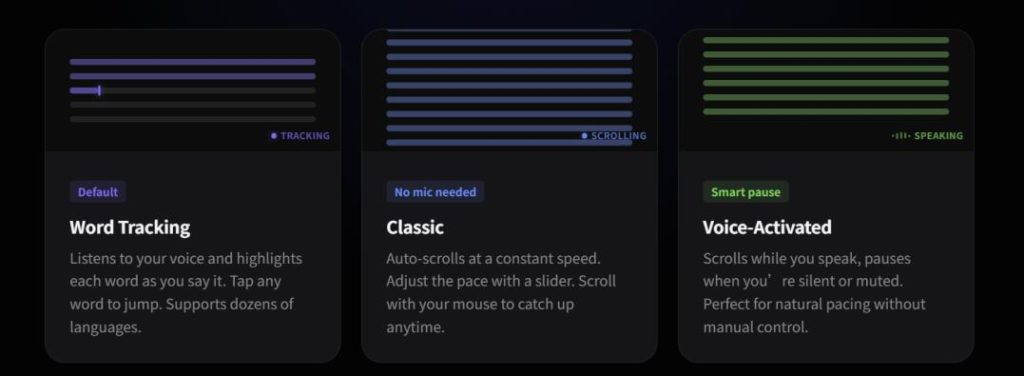
The author designed three guiding modes to suit different scenarios:
- Word Tracking – Speech‑tracking mode. Start speaking, and it highlights along; stop, and it stops. Supports dozens of languages, including Chinese.
- Classic Mode – Traditional scrolling at a constant speed. Suitable if you prefer a fixed pace or don’t want to enable the microphone. The speed is adjustable from 0.5 to 8 words per second. You can also use the mouse wheel to catch up quickly when needed.
- Voice‑Activated Mode – Scrolls as you speak and pauses automatically when you stop. Great for those who want a natural reading rhythm without being locked into a fixed speed.
Three Window Modes for Flexible Layouts
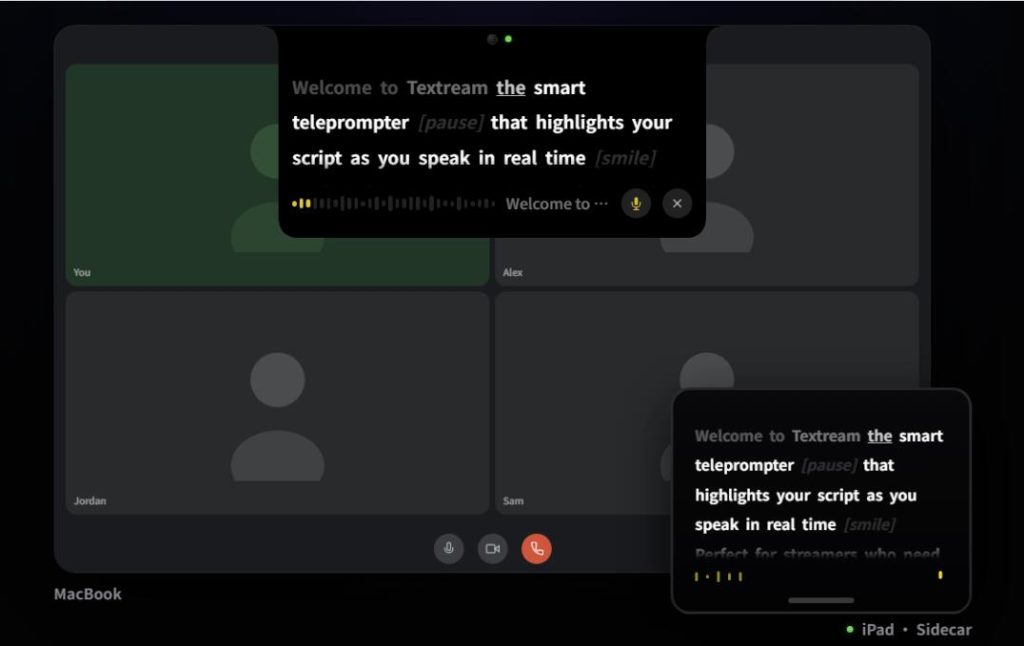
- Notch‑Top Mode – Docks the teleprompter just below the MacBook’s notch, creating a Dynamic Island‑like look. Always stays on top, and no other window can block it.
- Floating Window Mode – Drag the window anywhere you like. With frosted, adjustable‑transparency glass‑morphism, the visual experience is premium.
- Full‑Screen Immersive Mode – Use this to stay focused while making videos. The screen stays clean and undisturbed.
External Displays & Privacy Protection
It can also mirror to another display—for example, using Apple’s Sidecar to connect an iPad and use it as a secondary screen for prompting. It even works perfectly with professional physical teleprompters, supporting horizontal/vertical flipping and various mirroring modes, all adjustable with one click.
During Zoom meetings or screen recordings, if you set it to hide the screen‑sharing display, others won’t see your teleprompter at all—only you can.
Remote Connection & Director Mode
The remote‑connection feature starts a lightweight HTTP + WebSocket server locally, defaulting to port 7373. Open a browser to localhost:7373. Scan a QR code with your phone or tablet—no extra app needed, just a browser—and the teleprompter screen syncs in real‑time, including word highlighting and progress updates.
If you’re a director, you can enable Director Collaboration Mode. A remote partner can help edit the script and control the pacing. They just need to open the webpage, paste or edit the script live, and with one click control your teleprompter’s start/stop. Already‑read content is automatically locked and highlighted, and the interface focuses only on what hasn’t been spoken yet.
Customizable Fonts & Colors
Fonts supported: Sans, Serif, Mono, plus OpenDyslexic—a font specifically designed for people with dyslexia (a thoughtful detail). Font size adjustable from 14 pt to 24 pt. Highlight colors: white, yellow, green, blue, pink, orange.
How to Install
Two ways:
- Download the DMG directly from GitHub Releases (runs on both Apple Silicon and Intel).
- Install via Homebrew: bashbash
brew install f/textream/textream
Note: The app isn’t notarized by the Mac App Store, so macOS may block the first launch. If that happens, run in Terminal:
bashbashxattr -cr /Applications/Textream.app
Also, it requires macOS 15 Sequoia or newer.
How It Compares to Other Tools
Simply put:
- Need cross‑platform, enterprise‑grade features? Choose PromptSmart.
- Just want to read a script quickly, offline, with no uploads? Choose Textream.
Textream’s advantage is its lightweight, local nature. Open and use—no registration, no subscription, no worry about content leaks.
Of course, Textream isn’t perfect. Let’s be clear about its limitations:
- Currently only supports macOS. Windows and Linux users are out of luck for now.
- The project doesn’t specify an open‑source license. Although the code is public, its legal status is ambiguous. If licensing matters to you, check the GitHub repo first.
- No cloud sync—scripts are stored only locally. If you need syncing across multiple devices, you’ll have to figure that out yourself.
Final Thoughts
I occasionally record system‑tutorial videos. Not often, but each time I need a teleprompter. Honestly, I’ve tried several, and the experience wasn’t great. Some require registration, some upload scripts to the cloud, others demand monthly payments. I just want to use it temporarily—why so many hurdles?
Today I came across Textream, tried it, and this is exactly what I wanted: download, open, paste the script, start recording, done. It won’t replace PromptSmart or other commercial teleprompters on your computer, but when you just want to get something done quickly and move on, it’ll be the first tool you reach for.
If, like me, you only need a teleprompter occasionally and don’t want to deal with extra fuss, give it a try.
GitHub Repository: