
NotebookLM Automation, Someone Finally Did It
An unofficial open-source project.
In 4 months, GitHub Stars surged from 0 to over 14,000.
To be honest, this kind of achievement is quite rare in the AI tool space.
It’s called notebooklm-py, and what it does is simple: it lets developers programmatically control Google’s NotebookLM.
Some friends might not immediately grasp the significance here.
Let’s first paint a scenario in your mind:
You have 50 PDF documents at hand. You need to use NotebookLM to organize all of them into study notes.
A task that originally might have taken a whole afternoon. With notebooklm-py, it can be finished in minutes.
In terms of functionality, it basically covers all the capabilities of the NotebookLM web interface.
01 Source Management
It supports quite a variety of content sources:
URL links, YouTube videos, PDF documents, audio, video, images, and Google Drive files.
You can even directly paste a snippet of text, and it can handle that too.
Previously, if you wanted to import content from a YouTube video into NotebookLM, you either had to manually copy the subtitles or first prepare a summary.
Now, these operations can be done directly with a single command.
02 Content Generation
The Audio podcasts it generates come in 4 formats, including deep dives, briefings, commentary, and debates.
It supports 3 different duration lengths and covers over 50 languages.
Video overviews have 3 format options, with 9 different visual styles.
Even for slide exports, it offers both PDF and PPTX options, unlike the web interface which only supports PDF.
Additionally, for study guides and flashcards, it can export to JSON, Markdown, and even HTML, rather than just providing a shareable link as before.
03 Individual Slide Revision
This is actually quite a relief.
Previously, on the web interface, if you wanted to modify a single slide, you either had to regenerate all slides or manually export and edit it in PowerPoint.
Now, with this tool, you can directly specify a particular slide and have the AI regenerate that one specifically.
04 Research Tools
Supports both Web search and Drive search modes.
It can automatically search the web or your personal Google Drive for materials related to a topic, then import them into your notebook.
05 Agent Integration
Besides these core features, the Agent integration part is likely its most forward-looking aspect currently.
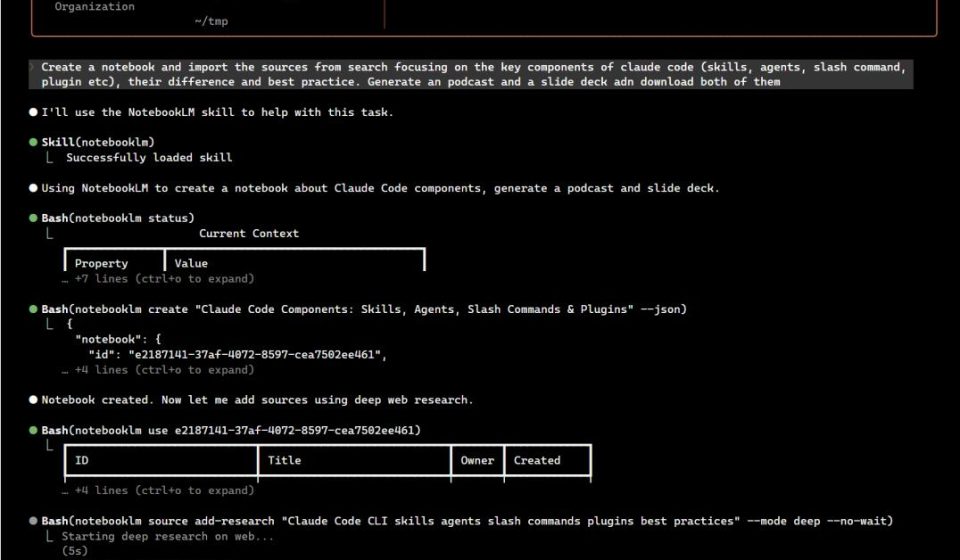
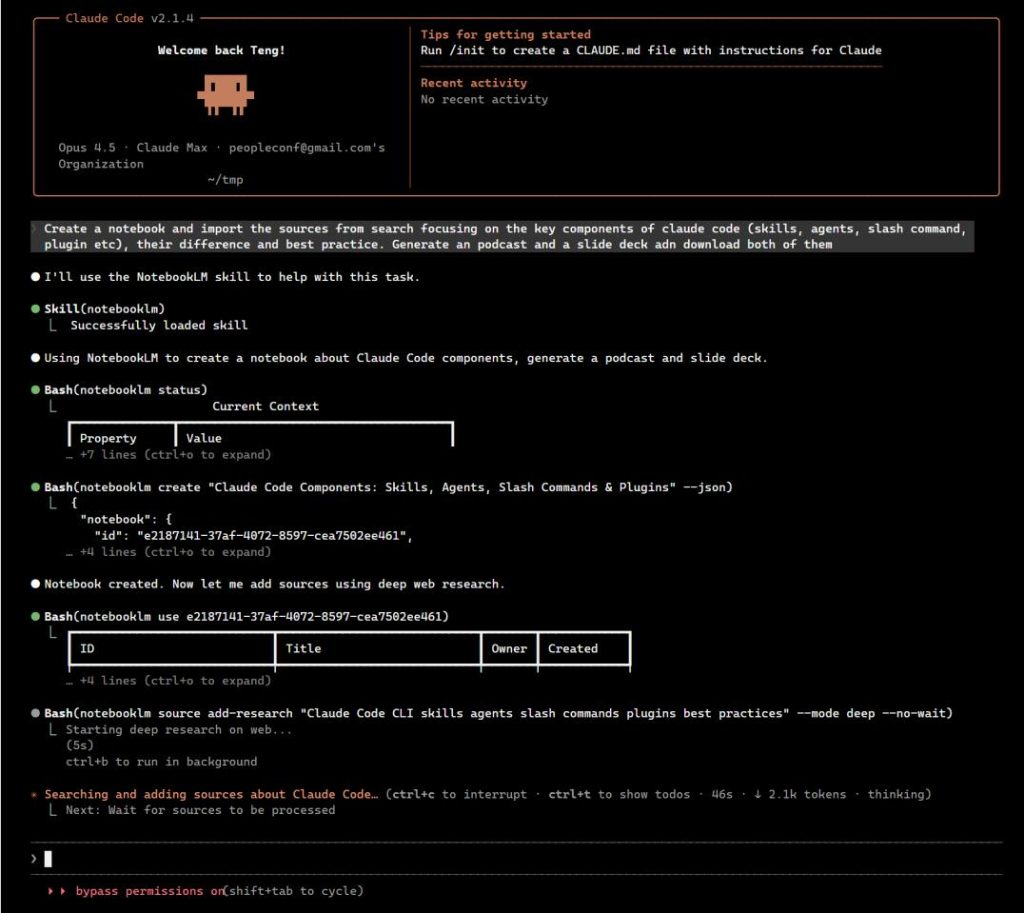
Leveraging MCP (Model Context Protocol), it enables AI Agents like Claude Code and Codex to directly control NotebookLM through natural language.
For example, you could simply tell Claude Code:
“Help me import this paper into NotebookLM, then generate a 10-minute podcast.”
Claude Code would then call the interfaces provided by notebooklm-py and automatically complete the entire workflow.
This ability of “using AI to control AI” is indeed not very common in the current open-source landscape. On Reddit, I saw someone comment that it has essentially formed a “programmable knowledge pipeline.” That assessment isn’t an exaggeration.
It provides three usage methods, corresponding to different scenarios.
First is the Python API path. If you’re a developer, you can directly call it in your Python code. This path is especially suitable for embedding it into your own applications or building entire automated processing pipelines.
Next is the Command Line Tool (CLI). If you’re more comfortable with terminal operations, the CLI basically covers most daily operations. It’s convenient for writing batch scripts or running automated tasks.
Then there’s the AI Agent Integration direction. If you regularly use tools like Claude Code or Codex, you can integrate via Skill, allowing these AI Agents to directly control NotebookLM. This means you can complete a series of fairly complex tasks just by speaking naturally.
Boundaries to Note
After looking at all these features, there are, of course, a few boundaries to mention.
- It relies on Google’s unofficial, undocumented APIs. This means Google could change the interface logic at any time, potentially causing this library to break. The project author is clear in the documentation: currently, this tool is best suited for prototyping, research/learning, and personal projects. It’s not recommended for production deployment.
- Authentication requires a Google account. You need to log in via a browser or manually import cookies. Although the project itself provides a cookie keep-alive mechanism, if you don’t run tasks for a long time, cookies can still expire, requiring you to refresh them.
- Currently, it only supports the Consumer version. Enterprise APIs are not supported. So if you are an enterprise user, you might need to look for other alternatives.
Quick Start
By this point, I believe many of you are probably eager to try it out.
01) First, install the dependencies.
First, install the package:
bashbashpip install "notebooklm-py[browser]"
Then, install the browser component as well:
bashbashplaywright install chromium
This process will take up about 170MB, so be patient for a little while.
02) Next, handle login authentication.
Run the following command:
bashbashnotebooklm login
This will open a browser window on your system, allowing you to authorize with your Google account.
03) Optionally verify the connection status.
Use the following command to confirm:
bashbashnotebooklm auth check --test --json
Once the screen indicates successful authentication, you can officially start using it.
From then on, whether you use the CLI or the Python API for specific operations—creating a new notebook, importing sources, or generating a podcast—the entire process can become automated.
Final Thoughts
Honestly, when I used NotebookLM before, the most annoying part was the inability to export. Podcasts and slides painstakingly generated couldn’t be easily used elsewhere without manual copy-pasting. For batch processing, it was simply not possible.
notebooklm-py solves this pain point.
Although it uses unofficial methods, and Google could change the APIs at any time, at least now it can be controlled with code. For me, that’s enough.
It’s open-source under the MIT license. If you’re interested, you can check it out on GitHub.
Open Source Address: https://github.com/teng-lin/notebooklm-py