

10 Years Later, Someone Finally Built a WSL Management Tool
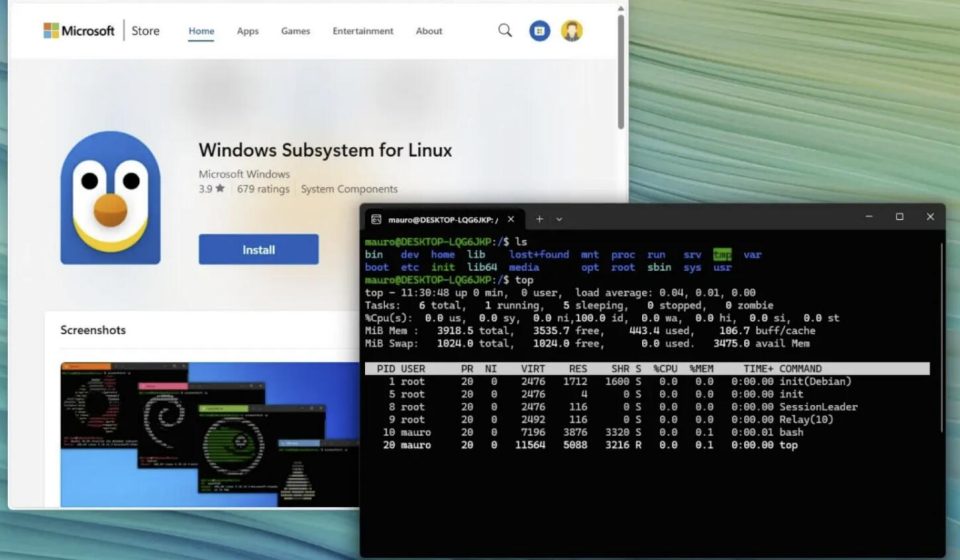
In August 2016, Microsoft introduced WSL on Windows 10. I remember when I first started using it, I thought, “Finally, no more fiddling with virtual machines.” Running Linux directly on Windows with near-native performance and access to Windows files—it seemed perfect. But after using it for a long time, problems slowly surfaced: WSL management is almost entirely command-line based, which is extremely unfriendly to beginners.
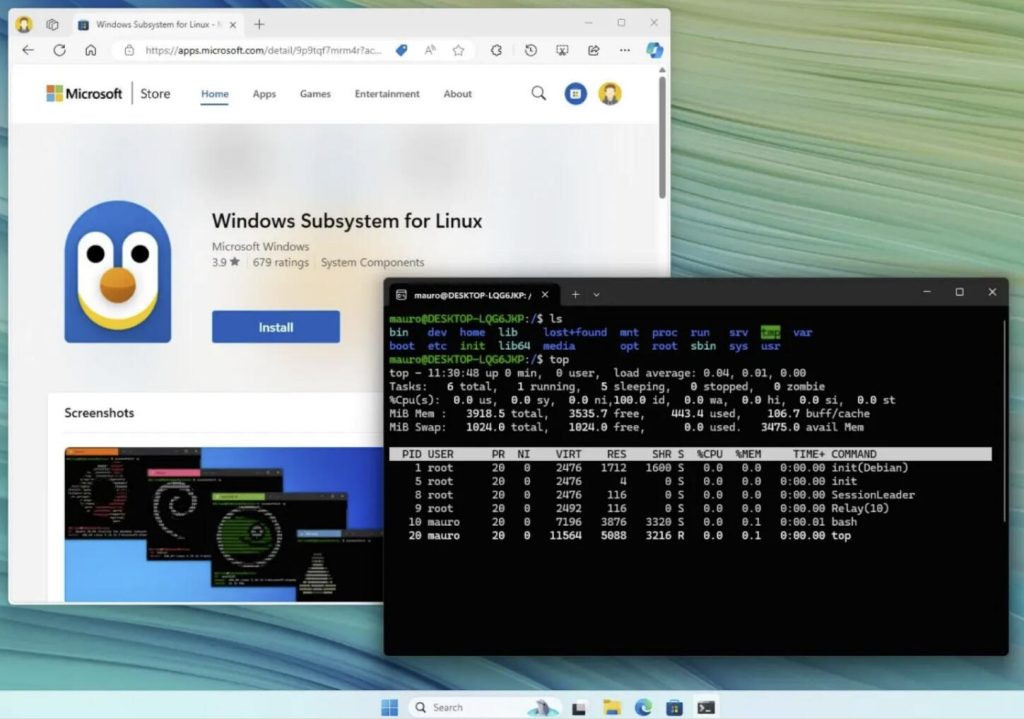
Once, I wanted to migrate Ubuntu to a different drive. I searched through tons of tutorials, opened PowerShell, and typed a series of commands like wsl --export, wsl --unregister, wsl --import… just because I mistyped a path slightly, the whole process took over half an hour. At the time, I couldn’t help but complain: why couldn’t Microsoft create a visual management tool like VMware—simple and intuitive—instead of forcing users to struggle with pure command-line operations?
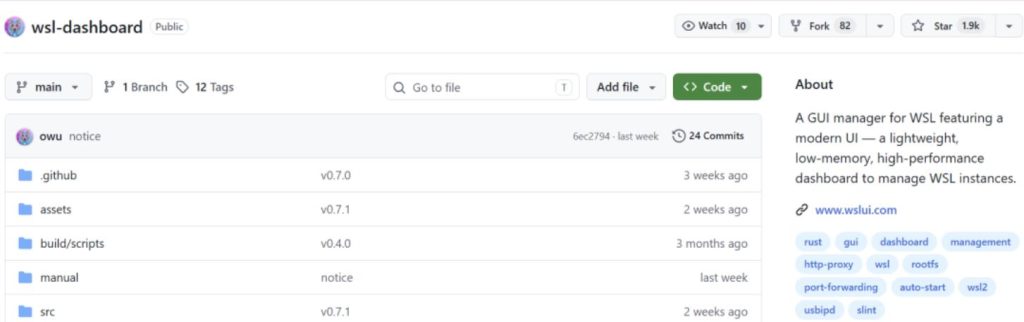
Recently, I came across WSL Dashboard on GitHub. Finally, someone has done it! WSL Dashboard is a WSL instance management panel written in Rust, currently with over 1,900 stars on GitHub.
WSL Dashboard in Dark Mode
It essentially turns the most commonly used and error-prone WSL operations into one-click buttons. Under the hood, it’s built with Rust, Slint, Skia, and Tokio, ensuring both security and performance.
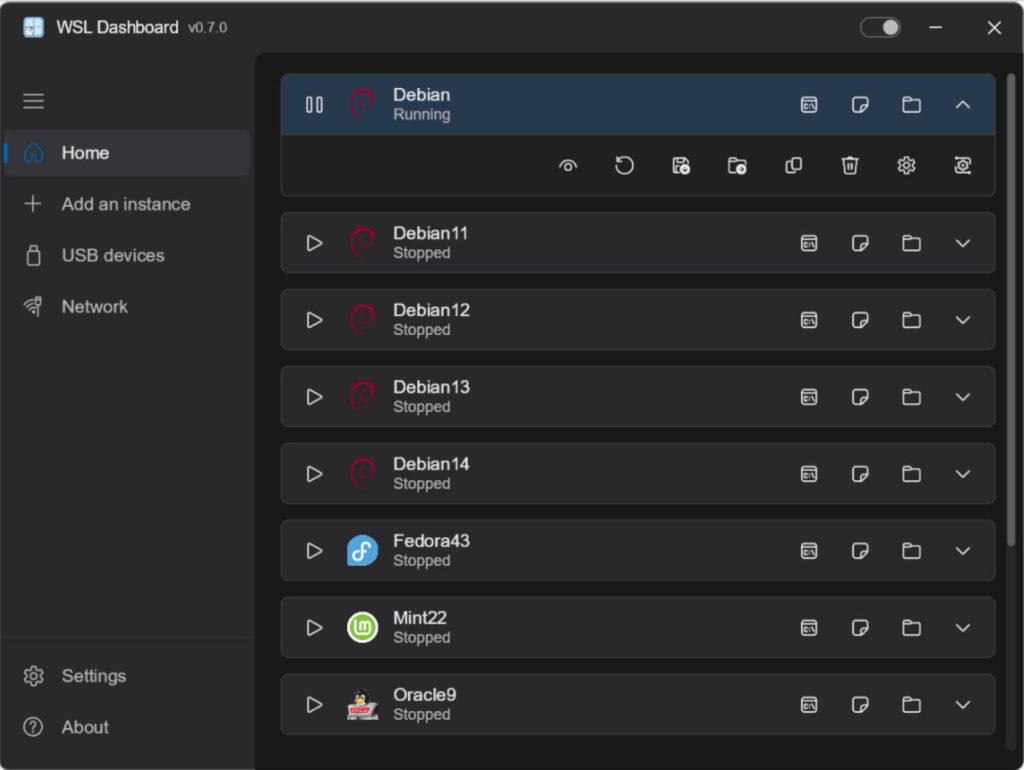
Key Operations for Each WSL Instance
- Distribution Status Management Previously, to check WSL status, start, or stop an instance, most users had to search for commands online, copy, and execute them. Now, that’s unnecessary—everything is just a click away in one interface.
- VHDX Migration Previously, migrating required multiple commands. Now, WSL Dashboard streamlines the entire process into a single step. For example, migrating a VHDX file used to involve searching for documentation, confirming source and target paths, executing commands, and hoping nothing went wrong. Today, with WSL Dashboard, you just select the instance, choose “Migrate,” pick the target disk, and confirm—done. No need to remember commands, and it auto-detects paths, eliminating worries about incorrect parameters.
- System Tray Integration It stays in the Windows system tray (bottom-right corner), using only about 10MB of memory. Double-click the tray icon to instantly open the window; right-click for various common functions.
- USB Device Management For those who need to manage USB devices in WSL, this feature is a game-changer. It integrates
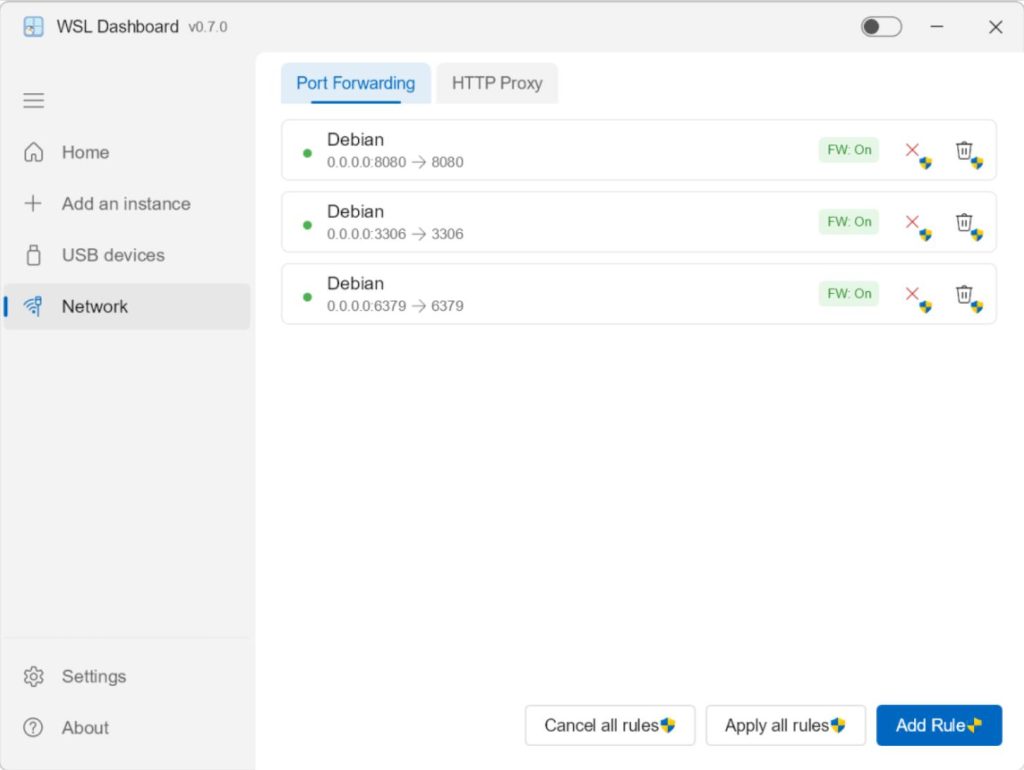
usbipd-win, allowing you to bind, mount, and manage USB devices directly in the interface—no commands needed. - Network Function Configuration Developers will frequently use this feature. Tasks like port forwarding management, automatic firewall rule creation, and global HTTP proxy configuration—previously manual setups—can now be handled directly in the interface.
Additional Benefits
Beyond core management features, WSL Dashboard includes some thoughtful details:
- Supports 26 languages, including Chinese, making it developer-friendly in China.
- Quick integration tools: one-click launch of Windows Terminal, VS Code, or File Explorer, with customizable working directories and startup script hooks. This boosts efficiency for developers who prefer working in VS Code.
- Performance advantages from Rust: startup is nearly instant, and the interface responds smoothly.
How to Get Started
The easiest way is to download the latest wsldashboard.exefrom the GitHub Releases page and run it directly—no installation required. If you already have WSL distributions installed, they’ll appear automatically in the interface.
Current Limitations
- Only supports Windows 10/11 with WSL 2.
- Some users have requested an installer; currently, new versions are standalone files and cannot be pinned to the Start menu.
Developer’s Vision
The author stated in the GitHub WSL official discussion: “My goal with WSL Dashboard is not to wrap every command in a GUI, but to turn the most common and error-prone operations into one-click actions.”
Final Thoughts
As a frequent WSL user myself, I’ve found that WSL Dashboard saves a lot of time. Tasks like checking distribution status, migrating disks, or cloning backups—previously requiring command-line work—can now be handled in one interface. It requires no installation, runs on download, and supports a Chinese interface. Highly recommended for those managing multiple WSL distributions.
The project is open-source under the GPL-3.0 license. If you’re interested, check out the source code and documentation on GitHub.
GitHub Repository: