
Under 3MB, Yet It Understands 15 Network Protocols
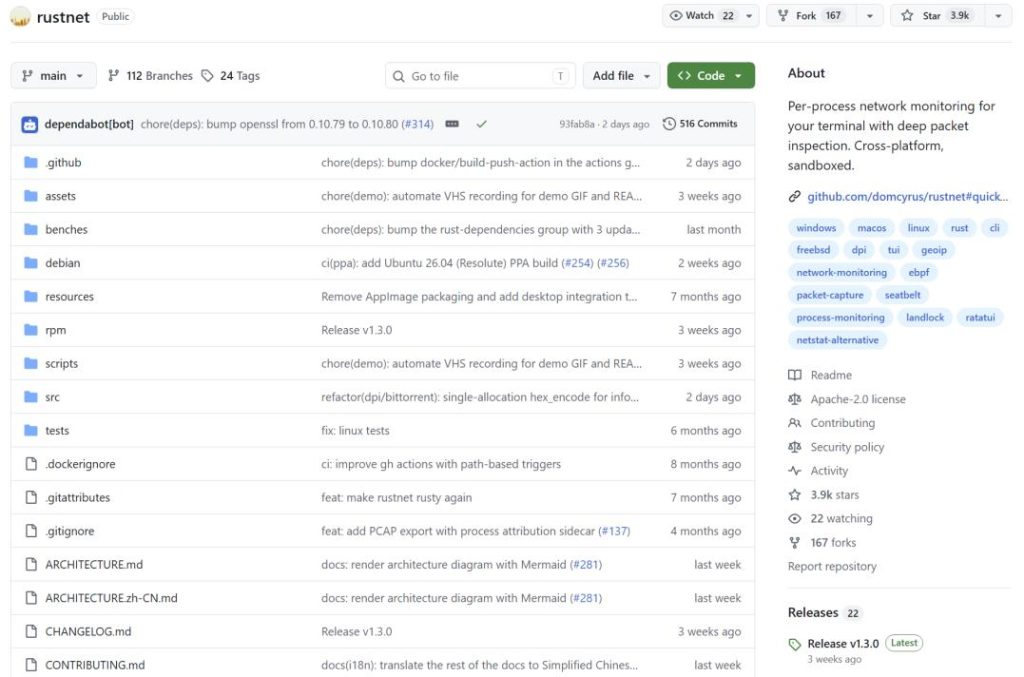
What can a tiny tool, weighing in at under 3MB, actually do? Today, I’m introducing RustNet, and it’s genuinely interesting. It’s a cross-platform terminal network monitoring tool. The project has already racked up over 3,900 Stars on GitHub.
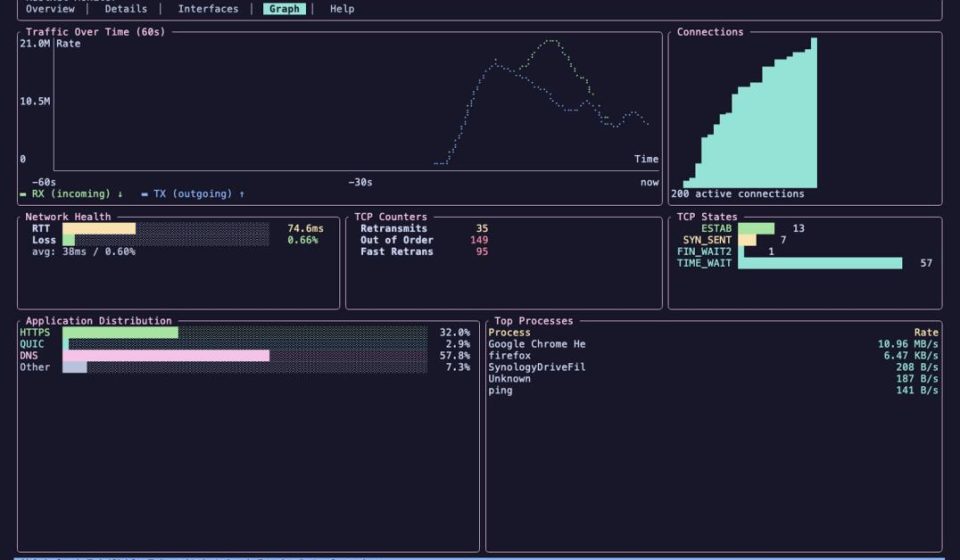
Think of it as a tool that organically merges core features from netstat, Wireshark, and iftopinto a single application. It monitors TCP, UDP, and QUIC connections in real-time and identifies over 15 protocols, including HTTP, HTTPS, DNS, SSH, MQTT, and BitTorrent. It’s more than just cramming several tools into one interface.
01 Know Exactly Which Process is Responsible
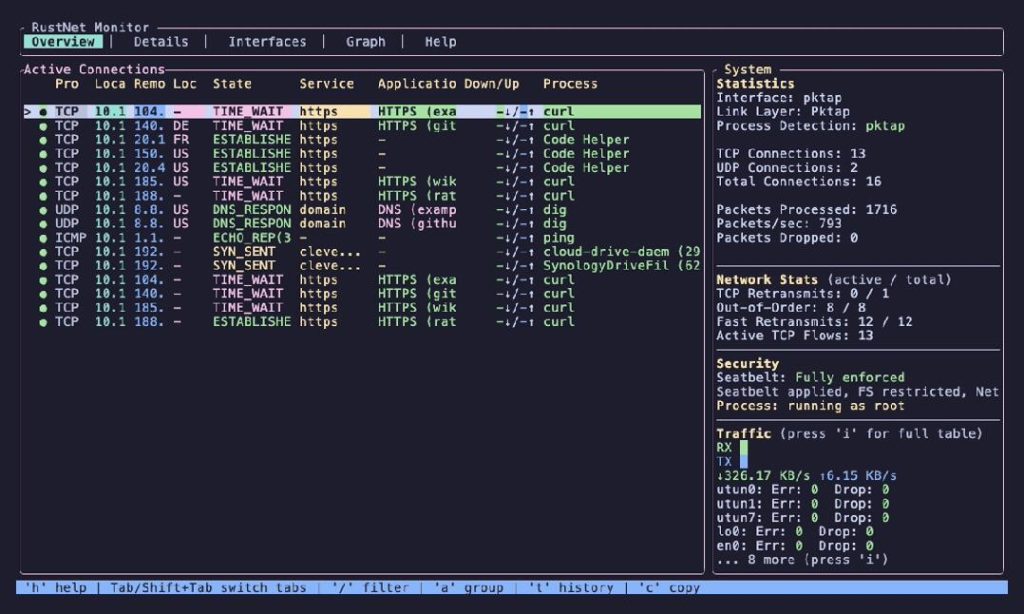
While Linux uses eBPF to track process behavior, this approach offers better overall performance compared to traditional procfs. As soon as a new process launches, it captures its network activity in real-time. Every connection explicitly tells you: which process established it and what its PID is.This saves immense time troubleshooting network issues, eliminating the guesswork.
02 It’s Not Just About Port Numbers
Beyond telling you the port, it identifies the Application Layer protocol running on top. It supports over 15 protocols—HTTP, HTTPS, DNS, SSH, QUIC, MQTT, BitTorrent, NTP, mDNS, DHCP, SNMP, SSDP, NetBIOS, and more. If it’s an HTTPS connection, it directly tells you the specific domain name being accessed. For DNS queries, you clearly see the query sent and the server’s response.
03 Connection States at a Glance
It sets different timeouts based on protocol type. For example, HTTP connections time out after 10 minutes, SSH after 30 minutes, and DNS queries after just 30 seconds. Within the TUI, colors indicate status:
- White: Active connection.
- Yellow: The connection has been idle for a while.
- Red: The connection is about to hit its timeout limit.
04 Cross-Platform and Easy to Install
It works on Linux, macOS, Windows, and FreeBSD, supporting all common installation methods.
05 Root Required for Capture, Then Safely Drops Privileges
Packet capture sometimes requires root or Administrator privileges. However, after launching, it does not keep high privileges. It actively drops them for safety:
- Linux: Uses Landlock.
- macOS: Uses Seatbelt.
- Windows: Drops the high-privilege token and restricts child process creation. In plain English: it requests high privileges, uses them, and then immediately revokes them to minimize security risks.
Nice Touches
- Powerful Filtering: Supports keywords like
port:,src:,dst:,sni:,process:,state:,proto:, and regex. Want to see all connections to GitHub? Just typesni:github.com. Want all SSH traffic? Typeproto:ssh. - PCAP Export: You can export a PCAP file to open in Wireshark for deeper analysis. It also generates a JSONL sidecar file containing process ownership info, so you know which processsent the packets, even inside Wireshark.
Getting Started
Many of you are probably eager to try this. The simplest way depends on your OS:
- macOS / Linux: bashbash
brew install rustnet sudo rustnet - Ubuntu 25.10+: bashbash
sudo add-apt-repository ppa:domcyrus/rustnet sudo apt update && sudo apt install rustnet sudo rustnet - Windows: Install Npcap first, then use Chocolatey: powershellpowershell
choco install rustnet rustnet
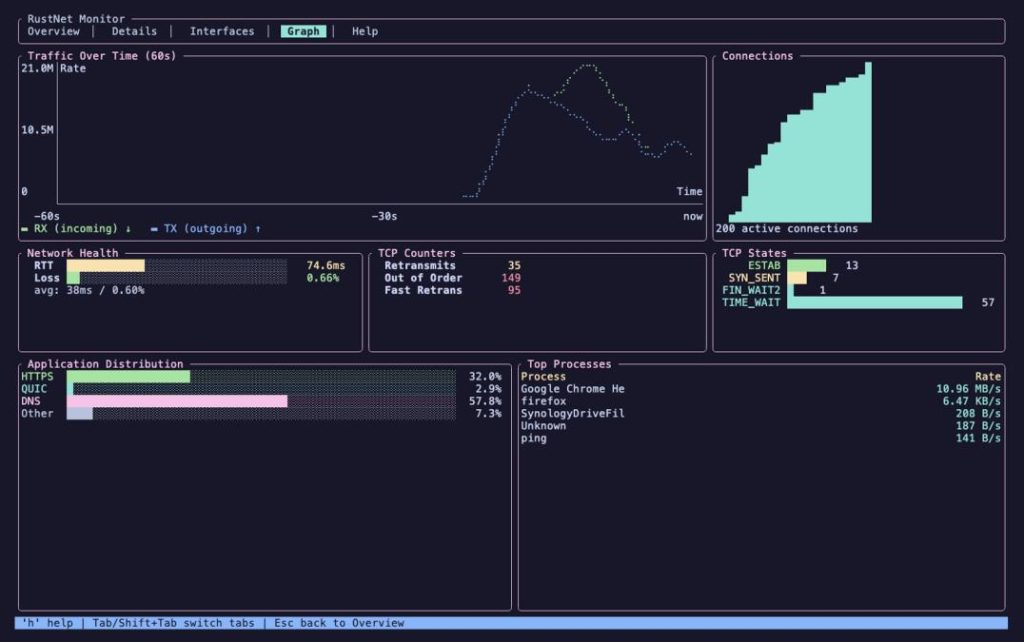
After launching, you’ll see a TUI based on ratatui.
A Few Limitations to Note
- Linux eBPF Limitation: The process name captured via eBPF is limited to 16 characters. For multi-threaded programs, it might show a thread name instead of the main process name.
- Windows: Process identification was added in v0.13.0 and is relatively new.
- TUI Only: It’s fundamentally a TUI tool. If you need a Web UI or remote monitoring, you must use it via SSH.
The Verdict
After hearing about all these features, RustNet might sound like it does everything. But there’s no silver bullet. If you need deep packet analysis, Wireshark is still king. If you just want a quick glance at connection lists, netstatworks fine. RustNet fills the gap in between.
Final Thoughts
I recall debugging a DNS resolution issue: tcpdumpto capture, Wireshark to analyze, netstatto check connections… the whole ordeal took half a day. With RustNet, you see DNS queries and responses instantly without exporting PCAPs. Once you use it, you’ll understand the efficiency gain.
What tools do you usually use to monitor network connections? Share your choice in the comments.
The project is open-source under the Apache-2.0 license.
Source Address: https://github.com/domcyrus/rustnet